
Emails can be generated and sent from Obseron through rules, once the outgoing mail settings are configured.
Outgoing mail settings
The settings can be found from Settings > System > Outgoing mail
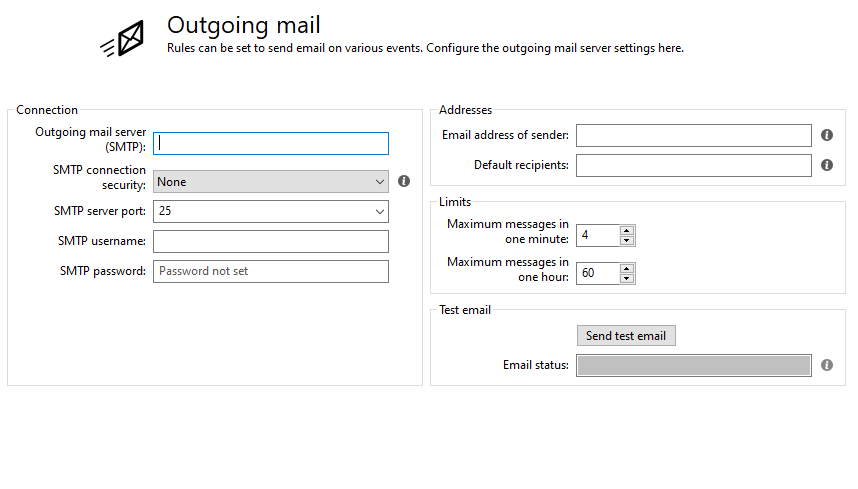
Outgoing mail server - Customers own or ISP provided outgoing mail server
SMTP connection security - In case the outgoing mail server requires secure connections, this can be toggled on
SMTP server port - The port used by the outgoing mail server
SMTP username - If authentication is required by the outgoing mail server, fill the username here
SMTP password - If authentication is required by the outgoing mail server, fill the password here
Email address of sender - Enter an email, that the emails sent from Obseron come from, here. For example, recorder1@customer.com
Default recipients - If the emails are always sent to same recipients, the addresses can be added here. Each rule can also be configured with an individual email.
Limits - Maximum messages per minute or hour can be limited to avoid too many emails from being sent by rules.
Test email - Send test email button sends an test message to all the default recipients to see if the settings are correct
Sending emails with rules
Once the outgoing mail settings are configured, can a rule be created to send an email.
We can use and Connection lost rule as an example rule. Once a connection is lost to any camera for more than 10 seconds, an email is sent.
Create a rule with a condition Connection lost, Any camera, 10 sec.
Add an action Send an email and fill in the Recipient (if the default recipients are configured, this field is optional), Subject and the Message. A snapshot of any of the cameras can also be attached, but there may be limitations on the outgoing mail server with attachment sizes.
Comments
0 comments
Please sign in to leave a comment.